You've made a change to your thesis – added a chapter, reworded a heading, shifted some pages – and your table of contents hasn't caught up. The page numbers are wrong, a new section is missing, or the whole thing simply refuses to budge.
The good news is that this is almost always a quick fix once you know what Word is doing behind the scenes. Here's how to sort it out, starting with the fastest fix and working through to the trickier causes.
The 10-second fix: Word doesn't update the table on its own
The single most common reason a table of contents looks wrong is the simplest one: Word never updates it automatically. A table of contents is a field – a live snapshot that only refreshes when you tell it to. Type a new page of content and the table won't notice until you ask it to look again.
To refresh it:
- Click anywhere inside the table of contents.
- Right-click and choose Update Field (or press F9).
- Choose Update entire table – not just page numbers – then click OK.
Always pick Update entire table rather than Update page numbers only. The page-numbers option won't pick up new headings, renamed headings, or changes to your heading structure. Updating the entire table rebuilds it from scratch and catches everything.
If that fixes it, you're done. If your new headings still don't show up, read on – the cause is almost always the next one.
The real culprit: your headings aren't using heading styles
This is the problem behind most "my heading won't appear in the table of contents" panics.
Word doesn't build a table of contents from text that looks like a heading. It builds it from text that has an actual heading style applied – Heading 1, Heading 2, Heading 3, and so on. If you created a heading by manually making it bigger and bold, Word sees ordinary body text in a large font. It has no idea it's a heading, so it leaves it out of the table entirely.
To check whether a heading has a style applied:
- Click into the heading.
- Look at the Styles gallery on the Home tab, or open the Styles pane.
- If the highlighted style says Normal (or your body-text style) rather than a Heading style, that's your problem.
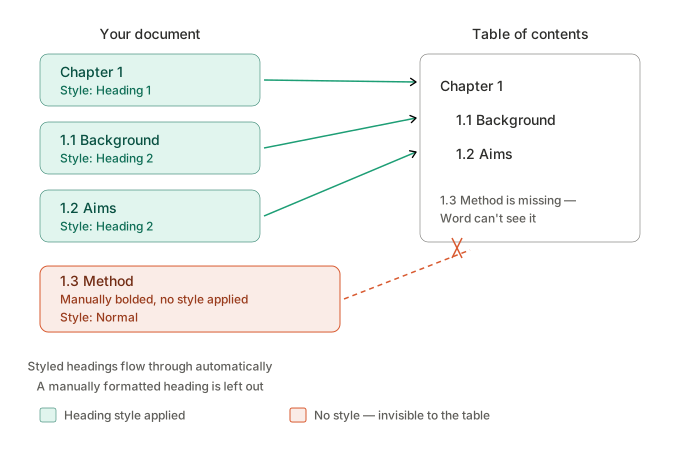
To fix it, click into the heading and apply the correct style – Heading 1 for chapter titles, Heading 2 for main sections, Heading 3 for subsections, and so on. Then update the table of contents again using the steps above. The heading should now appear.
This is also why headings sometimes vanish after you've done a big edit. Moving large blocks of text, deleting sections, or pasting content in from another document can strip the heading styles away, and Word quietly drops those headings from the table without warning you.
Other reasons a table of contents won't behave
If the two fixes above haven't solved it, one of these is usually to blame.
Your headings use custom styles that aren't mapped to the table. Some thesis templates use their own named styles rather than the built-in Heading 1–3. If your headings are styled but still missing, the table may not be set to include those particular styles. In Insert Table of Contents → Options, you can tell Word which styles to treat as which heading levels.
"Error! Bookmark not defined" appears where page numbers should be. This happens when the hidden bookmarks the table relies on get deleted – often during heavy editing. Updating the entire table usually clears it; if it keeps returning, the underlying structure needs a closer look.
The wrong levels are showing. Too many sub-sub-headings cluttering the table, or main sections missing? The table is set to display a certain number of heading levels. You can change how many it shows in the Table of Contents options, or adjust which style sits at which level.
Track Changes is throwing off the page numbers. If Track Changes is on and set to show markup, the on-screen page count can differ from the final document. Accept or hide the changes before you trust the page numbers in your table.
A note for thesis writers specifically
Formatting problems like this tend to surface at the worst possible moment – the week you're trying to submit, when you've just made your final edits and the document has been reshuffled one too many times. Word's formatting is more fragile than it looks: a table of contents that behaved perfectly last month can break the moment you restructure a chapter or paste in a co-author's section.
If you're building your thesis from scratch, the best insurance is to use proper heading styles from the very beginning, rather than formatting headings by hand. It's the difference between a table of contents that rebuilds itself in two clicks and one that fights you every time you touch the document.
Still not updating?
If you've worked through the steps above and your table of contents still won't cooperate – headings missing for no obvious reason, numbering that won't come right, or "Error! Bookmark not defined" that keeps coming back – it usually means something's broken deeper in the document's structure. That's frustrating to untangle yourself, especially against a submission deadline.
This is exactly the kind of thing our Fix-Up service is for. Send us your document and we'll find what's actually going wrong, fix it properly, and make sure your table of contents, headings, and page numbering all behave – so you can get back to the parts of your thesis that matter. It's charged by the hour, and we'll confirm the estimated time before we start.